Recover a lost SA password

This article is taken from https://www.sqlshack.com/recover-lost-sa-password/

You configured a new SQL Server instance and lost or forgot the “sa” password

  • All the users who are part of sysadmin server level role are removed accidentally
  • All the users who are part of sysadmin server level role are disabled accidentally
  • Lost sysadmin access to the SQL Server instance

Consider this scenario:

Initially, I was a member of the [BUILTIN\Administrators] group. To illustrate this scenario, I connected to SQL Server using Windows authentication and I deleted all the logins in the SQL Server instance. Please refer to the below image that shows all the logins that were deleted and the login “sa” is disabled.
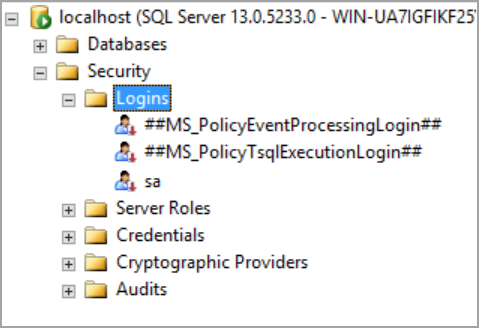
recover SA password by starting SQL Server in single user mode

I closed the connection and tried to connect the SQL Server instance using the same account which I used earlier. I am unable to log in as I deleted all the logins and the group [BUILTIN\Administrators] from which I gained access earlier. Please refer to the below image that shows login failure error.
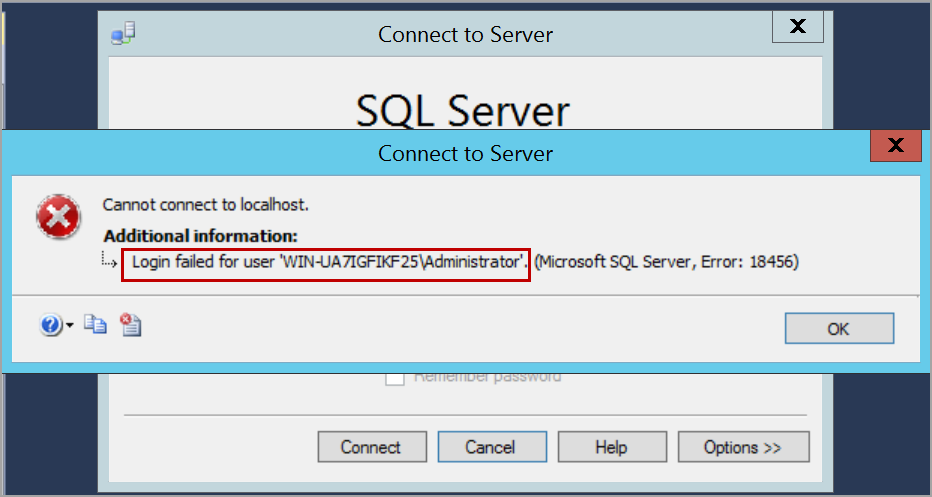
login failed.

Now, I’ve lost access to the SQL Server instance. I do not have any login that can connect to the SQL Server instance. I do not know the “sa” login password or even if the “sa” login is disabled.

In this situation, to gain access to your databases, we can re-install the SQL Server instance and attach the databases. This process may take more time and effort.

To gain access to the SQL Server instance back or recover SA password, please follow the below steps.

Start SQL Server in single user mode

We need to start SQL Server in single user mode by adding the parameter -m or –f in the startup parameters. Open SQL Server configuration manager and select the service of SQL Server instance. Right-click and click on the Properties option.
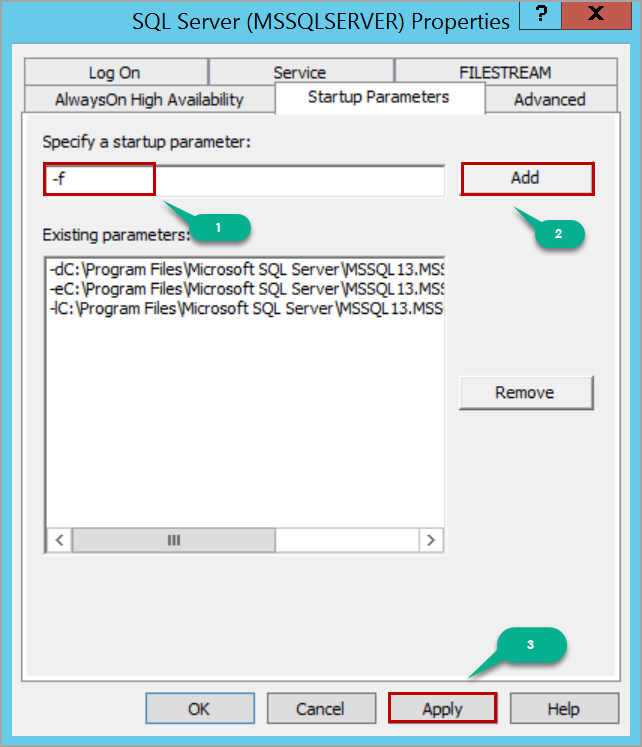
start up parameters to run SQL Server in single user mode

After adding the startup parameter, click on the Apply button and then the OK button in the warning message window.

Restart the SQL Server service to start SQL Server in single user mode. When the SQL Server is started in single user mode, all the users who are a member of the host’s local administrator group can connect to SQL Server instance and they will gain the privileges of server level role sysadmin which helps us to recover SA password.

So, if you are a member of the local administrator group, you can connect to SQL Server instance using SQLCMD or SQL Server Management Studio. In this case, I am using SQLCMD.

Launch the Command Prompt and connect to SQL Server using SQLCMD. You would be able to successfully connect to the SQL Server instance.
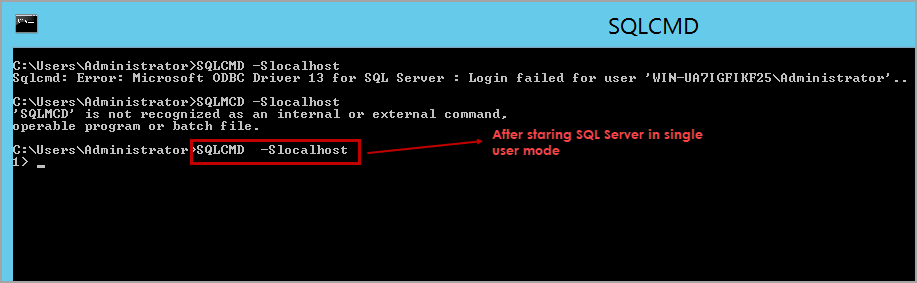
connect SQL Server using SQLCMD

Now, if you know the password of “sa” login, just enable the “sa” login and start SQL Server in multi-user mode, connect to SQL Server instance using “sa” login and create whatever logins you need for your application to run.

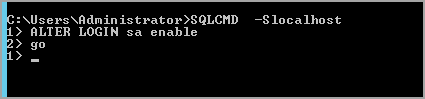
Please refer to the below T-SQL script to enable “sa” login.

ALTER LOGIN sa enableGO
connect to SQL Server in single user mode to recover SA password

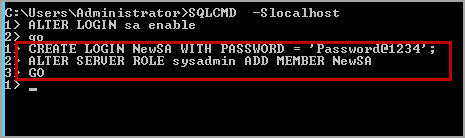
If you do not know the “sa” login password, create a SQL server login using the below T-SQL script.

CREATE LOGIN NewSA WITH PASSWORD = ‘Password@1234’;

Add the login NewSA to the server level role sysadmin. Please use the following T-SQL script to add the SQL Server login to the server level role sysadmin.

ALTER SERVER ROLE sysadmin ADD MEMBER NewSA GO
create sql server logins

Remove the startup parameter -m or -f that is added and restart the SQL Server services. Now, SQL Server instance is started in the multi-user mode and has the login that you created above. Please refer to the below image that shows the connection is established using NewSA login which is created above.
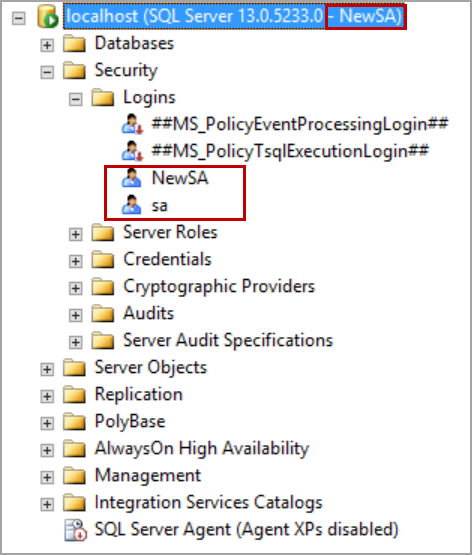
recover SA password

In some cases, you may have not enabled mixed-mode authentication (i.e. SQL Server and Windows authentication mode). In this situation even though we create a SQL Server login, it does not allow us to log in to SQL Server and throws login failed error.

Create a login from Windows account. Execute the following T-SQL script to create a Windows authentication login in SQL Server.

CREATE LOGIN [WIN-UA7IGFIKF25\rangach] FROM WINDOWSGO

Execute the following T-SQL script to add Windows authentication login to server level role sysadmin:

ALTER SERVER ROLE sysadmin ADD MEMBER [WIN-UA7IGFIKF25\rangach]GO

Replace the computer name and the login name with yours.
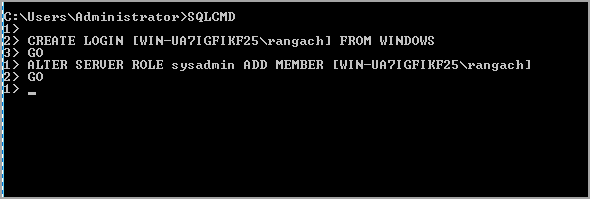
connect to SQL Server in single user mode from windows authentication

Remove the startup parameter and restart the SQL Server service. Log in to the computer with the same user as above.

Open SQL Server Management Studio and connect to the SQL Server instance using Windows authentication.
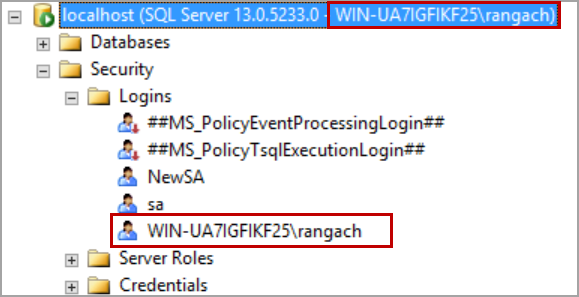
Recover SA password.connect SQL Server using windows authentication.

In case you want to create a login from Windows group, execute the following T-SQL script.

CREATE LOGIN [BUILTIN\Administrators] FROM WINDOWS
GO
ALTER SERVER ROLE sysadmin ADD MEMBER [BUILTIN\Administrators]
GO

MSSQL: Migrating users

Normally this will happens after setting up AlwaysOn High Availability
Only the Databases are synced.

Run this query in the new MSSQL server.

USE master
GO
IF OBJECT_ID ('sp_hexadecimal') IS NOT NULL
DROP PROCEDURE sp_hexadecimal
GO
CREATE PROCEDURE sp_hexadecimal
@binvalue varbinary(256),
@hexvalue varchar (514) OUTPUT
AS
DECLARE @charvalue varchar (514)
DECLARE @i int
DECLARE @length int
DECLARE @hexstring char(16)
SELECT @charvalue = '0x'
SELECT @i = 1
SELECT @length = DATALENGTH (@binvalue)
SELECT @hexstring = '0123456789ABCDEF'
WHILE (@i <= @length)
BEGIN
DECLARE @tempint int
DECLARE @firstint int
DECLARE @secondint int
SELECT @tempint = CONVERT(int, SUBSTRING(@binvalue,@i,1))
SELECT @firstint = FLOOR(@tempint/16)
SELECT @secondint = @tempint - (@firstint*16)
SELECT @charvalue = @charvalue +
SUBSTRING(@hexstring, @firstint+1, 1) +
SUBSTRING(@hexstring, @secondint+1, 1)
SELECT @i = @i + 1
END

SELECT @hexvalue = @charvalue
GO

IF OBJECT_ID ('sp_help_revlogin') IS NOT NULL
DROP PROCEDURE sp_help_revlogin
GO
CREATE PROCEDURE sp_help_revlogin @login_name sysname = NULL AS
DECLARE @name sysname
DECLARE @type varchar (1)
DECLARE @hasaccess int
DECLARE @denylogin int
DECLARE @is_disabled int
DECLARE @PWD_varbinary varbinary (256)
DECLARE @PWD_string varchar (514)
DECLARE @SID_varbinary varbinary (85)
DECLARE @SID_string varchar (514)
DECLARE @tmpstr varchar (1024)
DECLARE @is_policy_checked varchar (3)
DECLARE @is_expiration_checked varchar (3)

DECLARE @defaultdb sysname

IF (@login_name IS NULL)
DECLARE login_curs CURSOR FOR

SELECT p.sid, p.name, p.type, p.is_disabled, p.default_database_name, l.hasaccess, l.denylogin FROM
sys.server_principals p LEFT JOIN sys.syslogins l
ON ( l.name = p.name ) WHERE p.type IN ( 'S', 'G', 'U' ) AND p.name <> 'sa'
ELSE
DECLARE login_curs CURSOR FOR
SELECT p.sid, p.name, p.type, p.is_disabled, p.default_database_name, l.hasaccess, l.denylogin FROM
sys.server_principals p LEFT JOIN sys.syslogins l
ON ( l.name = p.name ) WHERE p.type IN ( 'S', 'G', 'U' ) AND p.name = @login_name
OPEN login_curs

FETCH NEXT FROM login_curs INTO @SID_varbinary, @name, @type, @is_disabled, @defaultdb, @hasaccess, @denylogin
IF (@@fetch_status = -1)
BEGIN
PRINT 'No login(s) found.'
CLOSE login_curs
DEALLOCATE login_curs
RETURN -1
END
SET @tmpstr = '/* sp_help_revlogin script '
PRINT @tmpstr
SET @tmpstr = '** Generated ' + CONVERT (varchar, GETDATE()) + ' on ' + @@SERVERNAME + ' */'
PRINT @tmpstr
PRINT ''
WHILE (@@fetch_status <> -1)
BEGIN
IF (@@fetch_status <> -2)
BEGIN
PRINT ''
SET @tmpstr = '-- Login: ' + @name
PRINT @tmpstr
IF (@type IN ( 'G', 'U'))
BEGIN -- NT authenticated account/group

SET @tmpstr = 'CREATE LOGIN ' + QUOTENAME( @name ) + ' FROM WINDOWS WITH DEFAULT_DATABASE = [' + @defaultdb + ']'
END
ELSE BEGIN -- SQL Server authentication
-- obtain password and sid
SET @PWD_varbinary = CAST( LOGINPROPERTY( @name, 'PasswordHash' ) AS varbinary (256) )
EXEC sp_hexadecimal @PWD_varbinary, @PWD_string OUT
EXEC sp_hexadecimal @SID_varbinary,@SID_string OUT

-- obtain password policy state
SELECT @is_policy_checked = CASE is_policy_checked WHEN 1 THEN 'ON' WHEN 0 THEN 'OFF' ELSE NULL END FROM sys.sql_logins WHERE name = @name
SELECT @is_expiration_checked = CASE is_expiration_checked WHEN 1 THEN 'ON' WHEN 0 THEN 'OFF' ELSE NULL END FROM sys.sql_logins WHERE name = @name

SET @tmpstr = 'CREATE LOGIN ' + QUOTENAME( @name ) + ' WITH PASSWORD = ' + @PWD_string + ' HASHED, SID = ' + @SID_string + ', DEFAULT_DATABASE = [' + @defaultdb + ']'

IF ( @is_policy_checked IS NOT NULL )
BEGIN
SET @tmpstr = @tmpstr + ', CHECK_POLICY = ' + @is_policy_checked
END
IF ( @is_expiration_checked IS NOT NULL )
BEGIN
SET @tmpstr = @tmpstr + ', CHECK_EXPIRATION = ' + @is_expiration_checked
END
END
IF (@denylogin = 1)
BEGIN -- login is denied access
SET @tmpstr = @tmpstr + '; DENY CONNECT SQL TO ' + QUOTENAME( @name )
END
ELSE IF (@hasaccess = 0)
BEGIN -- login exists but does not have access
SET @tmpstr = @tmpstr + '; REVOKE CONNECT SQL TO ' + QUOTENAME( @name )
END
IF (@is_disabled = 1)
BEGIN -- login is disabled
SET @tmpstr = @tmpstr + '; ALTER LOGIN ' + QUOTENAME( @name ) + ' DISABLE'
END
PRINT @tmpstr
END

FETCH NEXT FROM login_curs INTO @SID_varbinary, @name, @type, @is_disabled, @defaultdb, @hasaccess, @denylogin
END
CLOSE login_curs
DEALLOCATE login_curs
RETURN 0
GO

Run this in the old MSSQL server

EXEC sp_help_revlogin

The result will be a list a CREATE LOGIN query

-- Login: LOCAL\DBUser
CREATE LOGIN [LOCAL\DBUser] FROM WINDOWS WITH DEFAULT_DATABASE = [master]

Copy and paste these scripts to the new MSSQL server and run them.
When encounter error;
– Check DB server properties –> security server authentication mode.
– PID is used –> restart new DB server.
– User already exits –> can ignore or delete and recreate via query.